|
微软官方发布并开源了OmniParser V2 
OmniParser可以将任何大语言模型(LLM)变成能够使用计算机的AI助手!项目已在GitHub上收获超过16.3k星标。 今天就带大家完整体验下这个神器,从环境搭建到实际应用。 下面的视频演示了如何使用OmniParser AI Agent自动化的发布X 帖子: OmniParser核心能力OmniParser就像是给AI装上了一双"慧眼"。它能将UI屏幕截图转换为结构化的格式,让AI精准理解和操作界面上的每个元素。 
V2版本性能更强:在A100上处理速度达到0.6秒/帧,在RTX 4090上也只需0.8秒。 在ScreenSpot Pro基准测试中更是达到了39.6%的平均准确率。 
支持主流大模型,包括OpenAI (GPT-4V)、DeepSeek (R1)、Claude 3.5 Sonnet、Qwen (2.5VL)和Anthropic Computer Use。 通过全新的OmniTool,甚至可以直接控制Windows 11虚拟机! 环境准备首先克隆项目到本地: gitclonehttps://github.com/microsoft/OmniParser.gitcdOmniParser 创建并激活Python环境: condacreate-n"omni"python==3.12
condaactivateomni 安装核心依赖: pipinstall--upgradehuggingface_hub
pipinstallgradio==4.14.0
pipinstallhttpx==0.26.0
pipinstallhttpcore==1.0.2
pipinstallanyio==4.2.0
pipinstall-rrequirements.txt 下载模型文件创建一个download_models.py脚本: importosfromhuggingface_hubimporthf_hub_downloadfrompathlibimportPathdefdownload_omniparser_models():"""下载OmniParserV2的模型文件"""try:
base_path=Path("weights")
base_path.mkdir(exist_ok=True)
files=["icon_detect/train_args.yaml","icon_detect/model.pt","icon_detect/model.yaml","icon_caption/config.json","icon_caption/generation_config.json","icon_caption/model.safetensors"]print("开始下载模型文件...")forfileinfiles:print(f"正在下载:{file}")
hf_hub_download(
repo_id="microsoft/OmniParser-v2.0",
filename=file,
local_dir=base_path
)
icon_caption_path=base_path/"icon_caption"icon_caption_florence_path=base_path/"icon_caption_florence"ificon_caption_path.exists():ificon_caption_florence_path.exists():importshutil
shutil.rmtree(icon_caption_florence_path)
icon_caption_path.rename(icon_caption_florence_path)print("\n所有文件下载完成!")exceptExceptionase:print(f"\n下载过程中出现错误:{str(e)}")print("请检查网络连接并重试")if__name__=="__main__":
download_omniparser_models()在本地运行 Demo 运行后,打开浏览器访问本地服务(通常是 http://127.0.0.1:7860)。 上传任意界面截图后等待短暂处理(一般不超过1秒),就能看到详细的解析结果,包括可交互区域标注和功能描述。 效果如同下面这样,输入一张图片: 
输出图标标记的结果:
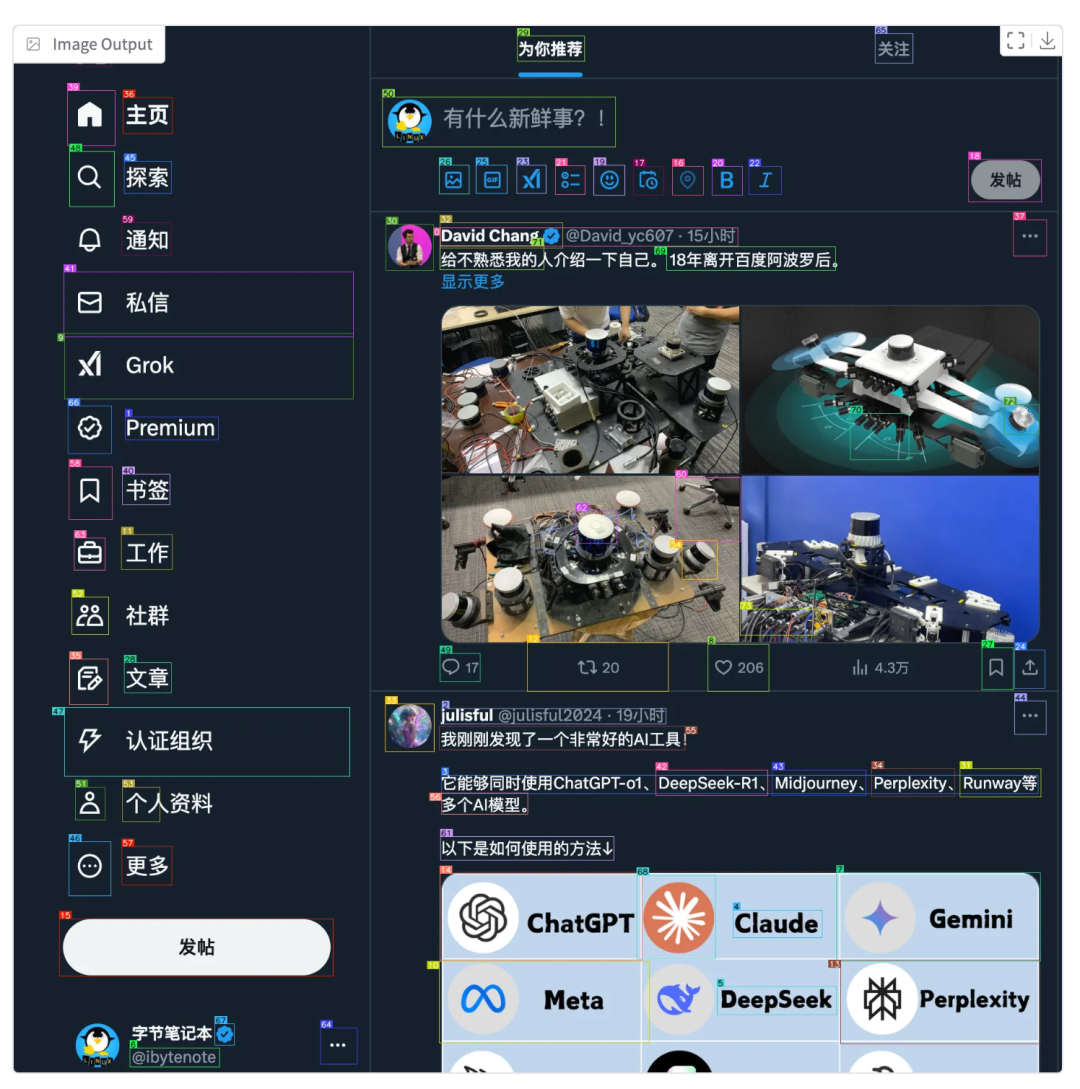 结构化的 JSON,这里包含了元素的内容识别和具体的坐标值: 
有了这些具体的结构化识别结果后,那么想象空间就可以无限大了! 跨平台自动化实战案例这里我们将实现一个跨平台的自动化操作方案:在服务器上部署OmniParser服务,然后通过macOS客户端实现自动化操作。 服务端部署: fromfastapiimportFastAPI,UploadFilefromPILimportImageimportioimportuvicorn
app=FastAPI()@app.post("/analyze")asyncdefanalyze_screen(image:UploadFile):#读取上传的图片image_data=awaitimage.read()
image=Image.open(io.BytesIO(image_data))#使用OmniParser处理图片#这里添加OmniParser的处理逻辑return{"elements":[...]}#返回识别到的元素信息if__name__=="__main__":
uvicorn.run(app,host="0.0.0.0",port=8000)客户端实现(macOS): importpyautoguiimportrequestsfromPILimportImageGrabdefcapture_screen():"""获取屏幕截图"""screenshot=ImageGrab.grab()returnscreenshotdefconvert_coordinates(omni_coords):"""转换OmniParser坐标到PyAutoGUI坐标"""#根据实际情况调整坐标转换逻辑returnomni_coordsdefclick_element(coords):"""执行点击操作"""pyautogui.click(coords[0],coords[1])defmain():#获取屏幕截图screenshot=capture_screen()#发送到OmniParser服务files={'image' 'screenshot.png',screenshot)}
response=requests.post('http://ubuntu-server:8000/analyze',files=files)#处理返回结果elements=response.json()['elements']#执行自动化操作forelementinelements:
coords=convert_coordinates(element['coords'])
click_element(coords)if__name__=="__main__":
main() 'screenshot.png',screenshot)}
response=requests.post('http://ubuntu-server:8000/analyze',files=files)#处理返回结果elements=response.json()['elements']#执行自动化操作forelementinelements:
coords=convert_coordinates(element['coords'])
click_element(coords)if__name__=="__main__":
main()说明如下: - 服务端负责图像解析:部署在服务端的OmniParser服务专门处理图像识别任务
- 客户端执行操作:macOS上的脚本负责截图、发送请求和执行实际的鼠标操作
- 跨平台协作:通过HTTP API实现两端的无缝配合
在这个基础框架,我们可以进一步扩展: - 接入GPT-4V等大模型,实现通过自然语言控制
- 添加更多自动化操作,如键盘输入、拖拽等
- 实现操作录制和回放功能
- 添加错误处理和重试机制
|